Apps by Guidesify Documentation
To use or try out our apps, visit our site.
Getting Started
Guidesify offers a variety of useful apps for your personal use and to build your business. Some apps are free to use, but take note that we have premium apps which require credits to use.
To start using our premium apps, ensure that you have created an account with us and that the account you are using has a sufficient balance of credits.
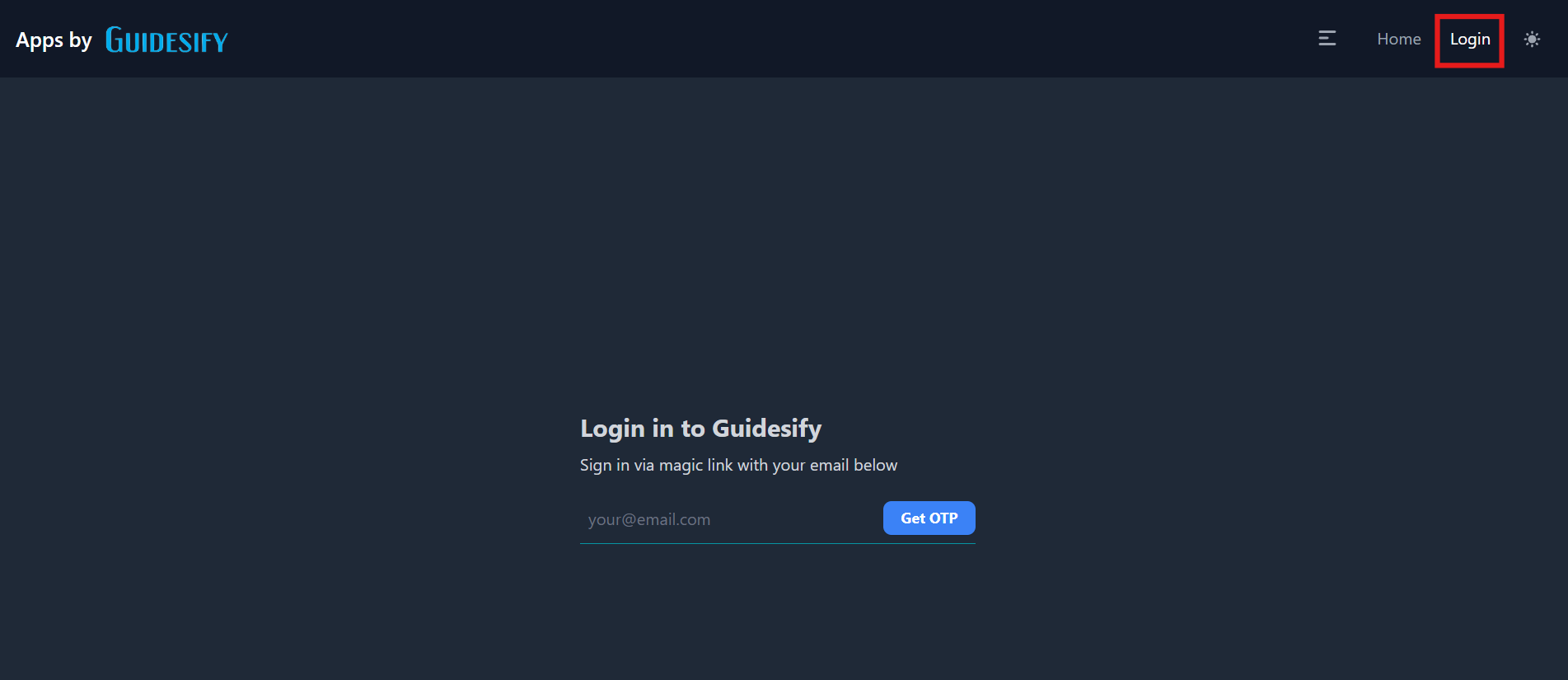
Ensure that the email address you have provided is valid and one that you have access to as an email will be sent to the provided email address which you will need to access in order to log in.
Premium Apps
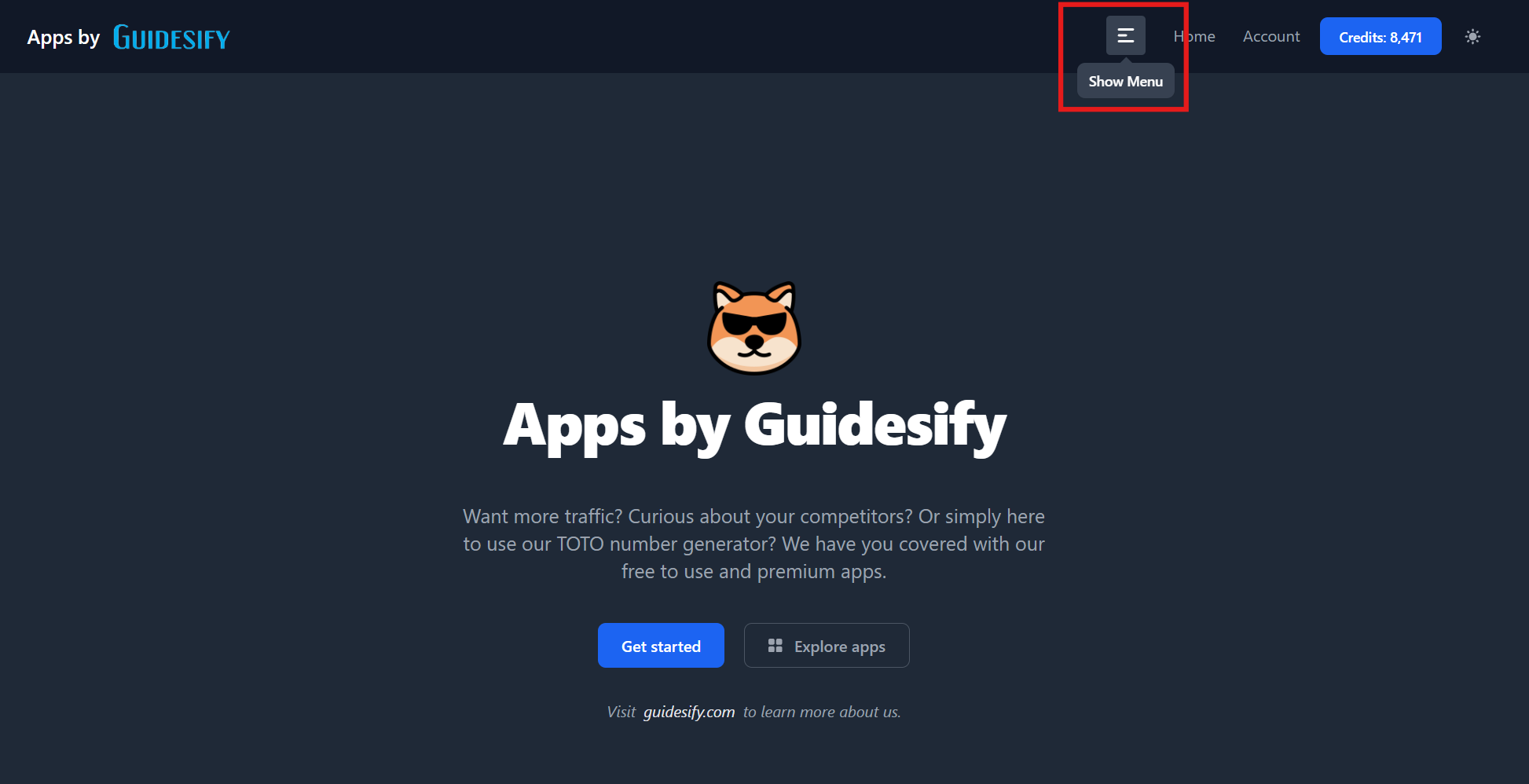
Access our premium apps by clicking on the "Show Menu" (depicted by the 3 lines) button at the top of the navbar and select whichever app you would like to use that falls under "Premium APIs" from the menu that slides onto your screen.
Some of the apps we offer are currently still under early access so if you encounter any bugs or issues, please do not hesitate to contact us for support so that we can address any issue with our apps as soon as possible.

Credits
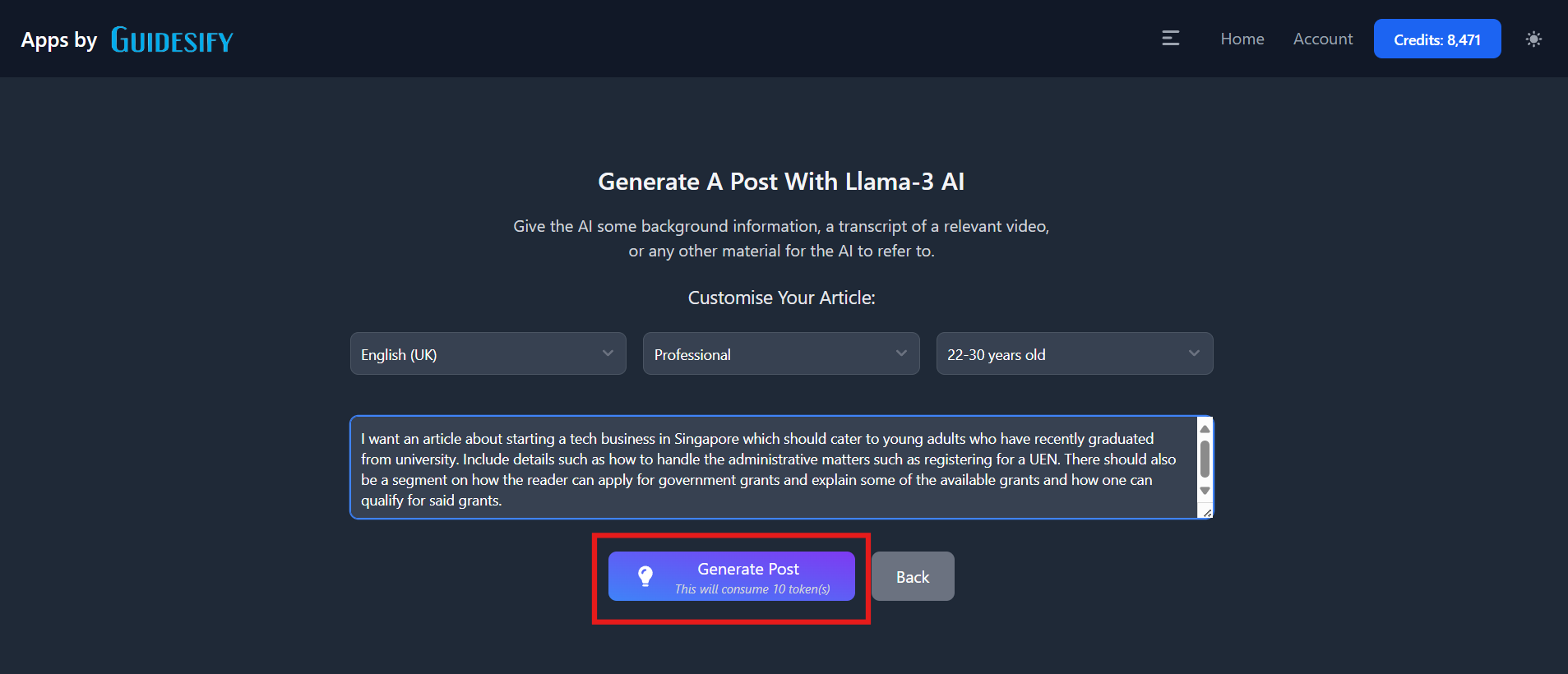
Credits are the currency used in the usage of our premium apps. The cost of using each app varies and below is an example of our GenAI SEO Writer app, which consumes 10 credits per use for every article generated.
To view the amount of credits you have in your account, first ensure that you are logged in, then look at the top right corner of the page, within the navbar. To top-up credits if you are running low, click on the amount of credits and you will be brought to the top-up page.
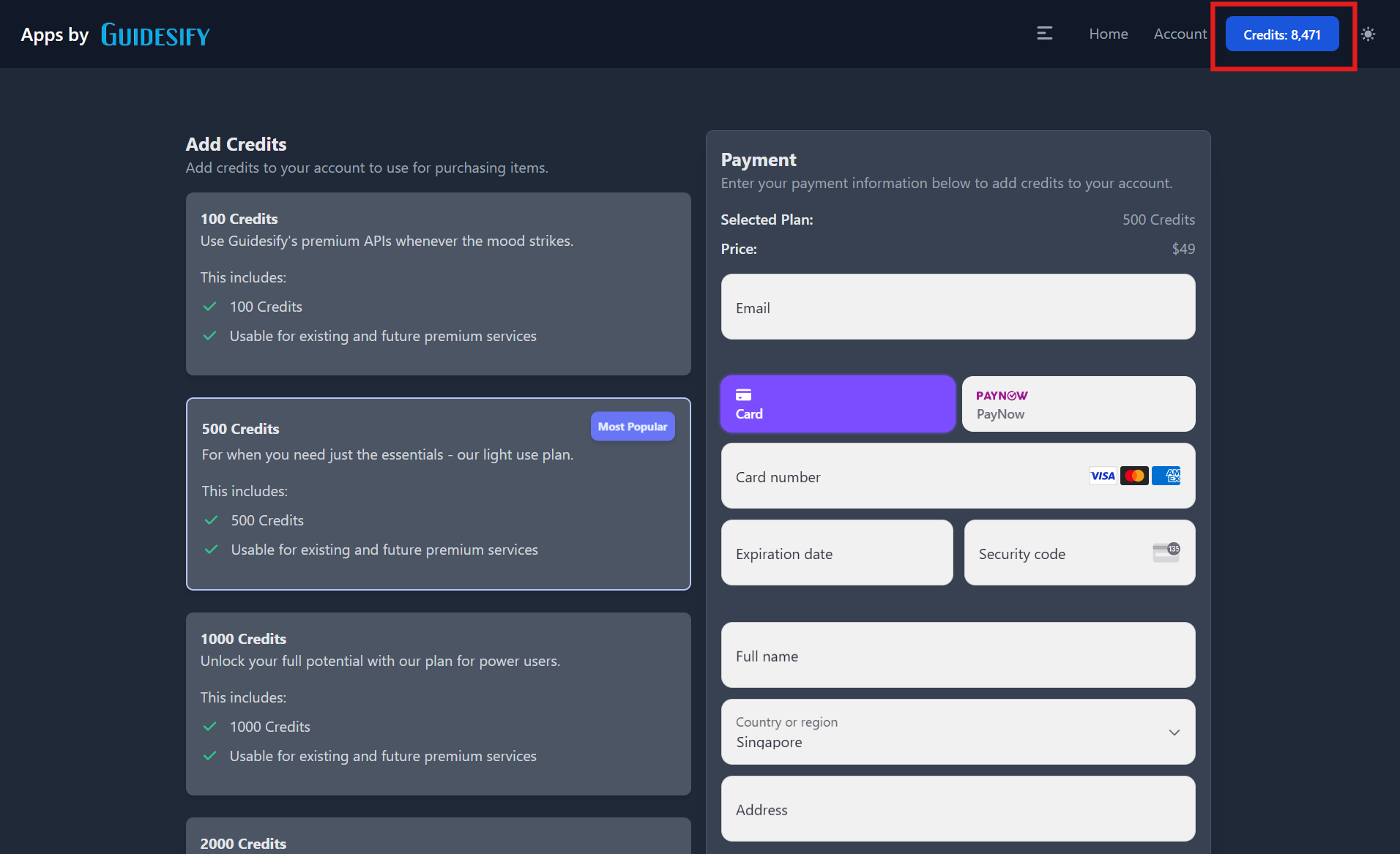
From there, select the amount of credits you would like to purchase and select the appropriate payment method and proceed with the payment. Credits will then be added to your account shortly after your payment has been validated.
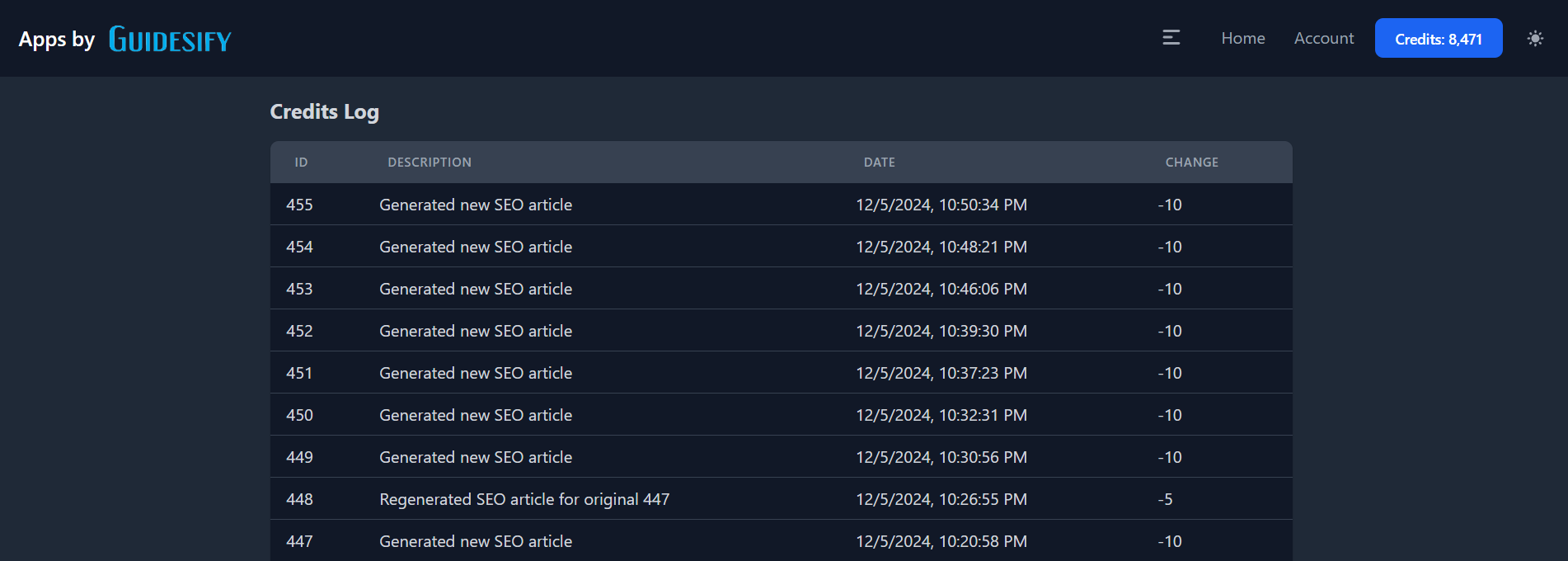
To check the history of your credits expenditure, click on the "show Menu" button (the 3 lines) in the navbar and click on the "Profile" button.
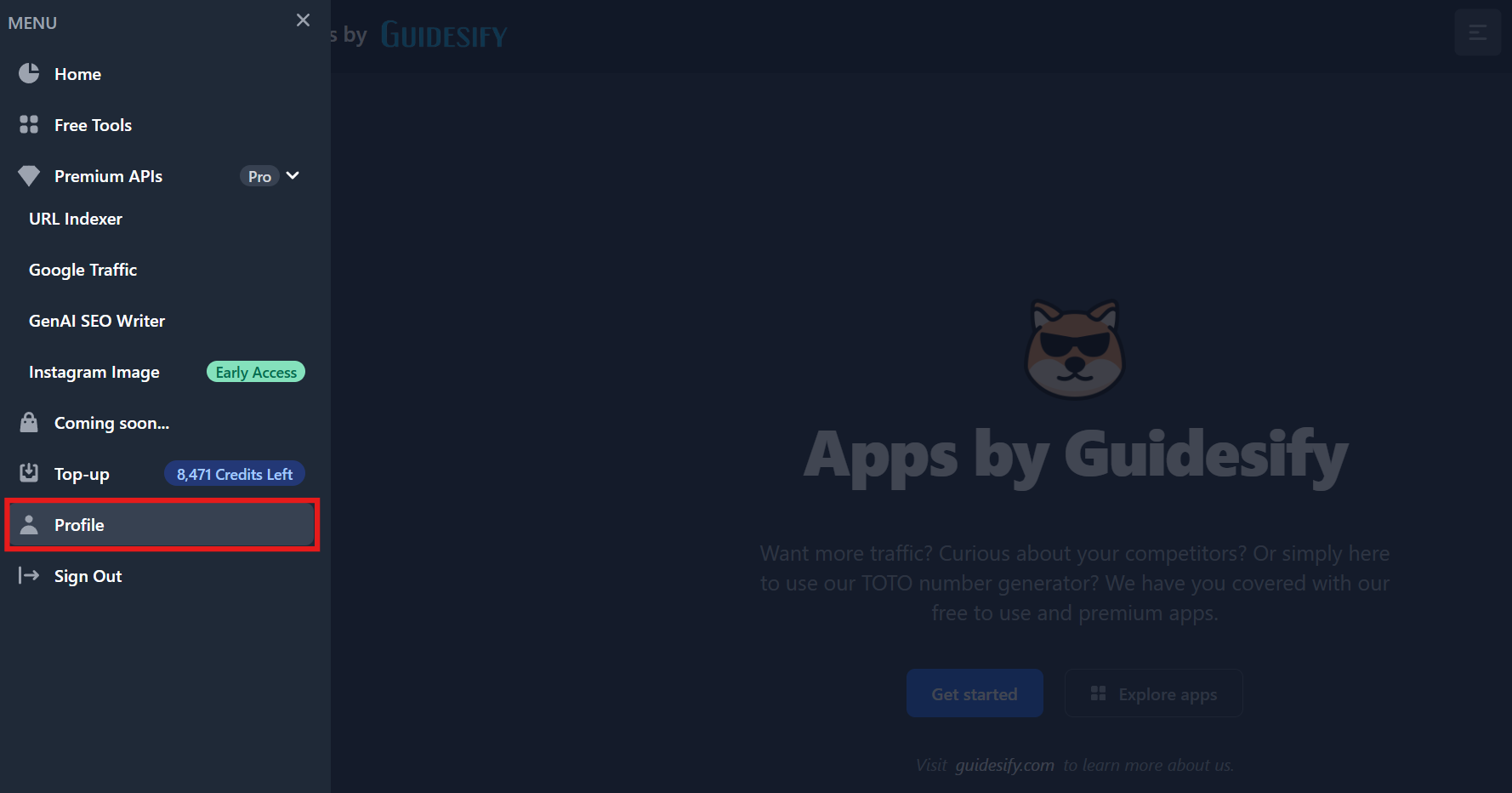
Here, you can see the credits log where you can see what your credits have been spent on, where it will tell you how many credits were spent and on which app the credits were spent on.